How to build and send training: step by step
Start to finish takes about a minute, and no technical skills are needed. There are two ways in, and both use the same engine. Pick whichever feels more comfortable, then follow the matching walkthrough below. Every step is a real screenshot from the app.
Pick your builder
Two front doors to the same result: a quiz or course, sent as a link or exported as SCORM.
Course Copilot
Drop a file and talk to it. The Copilot asks a few plain questions, one at a time, and builds the course from your answers. Best if you would rather be guided than fill in a form. Drafting questions here uses the AI, so it counts against the free plan's daily generations.
Open Course Copilot →Classic builder
A three-step form: upload, review and edit, send or export. Every option is on one screen, so you see all the controls at once. It also has a Quick quiz button that builds a quiz instantly in your browser with no AI used.
Open the classic builder →Tip: to make questions from a recorded session, upload the .vtt or .srt transcript that Zoom or Teams saved next to the recording. Both builders accept it, and reading a transcript is faster than processing the raw video.
Walkthrough A: Course Copilot
A short back-and-forth. You answer with the chips it offers or by typing, and it does the rest.
Step 1: Give it your material
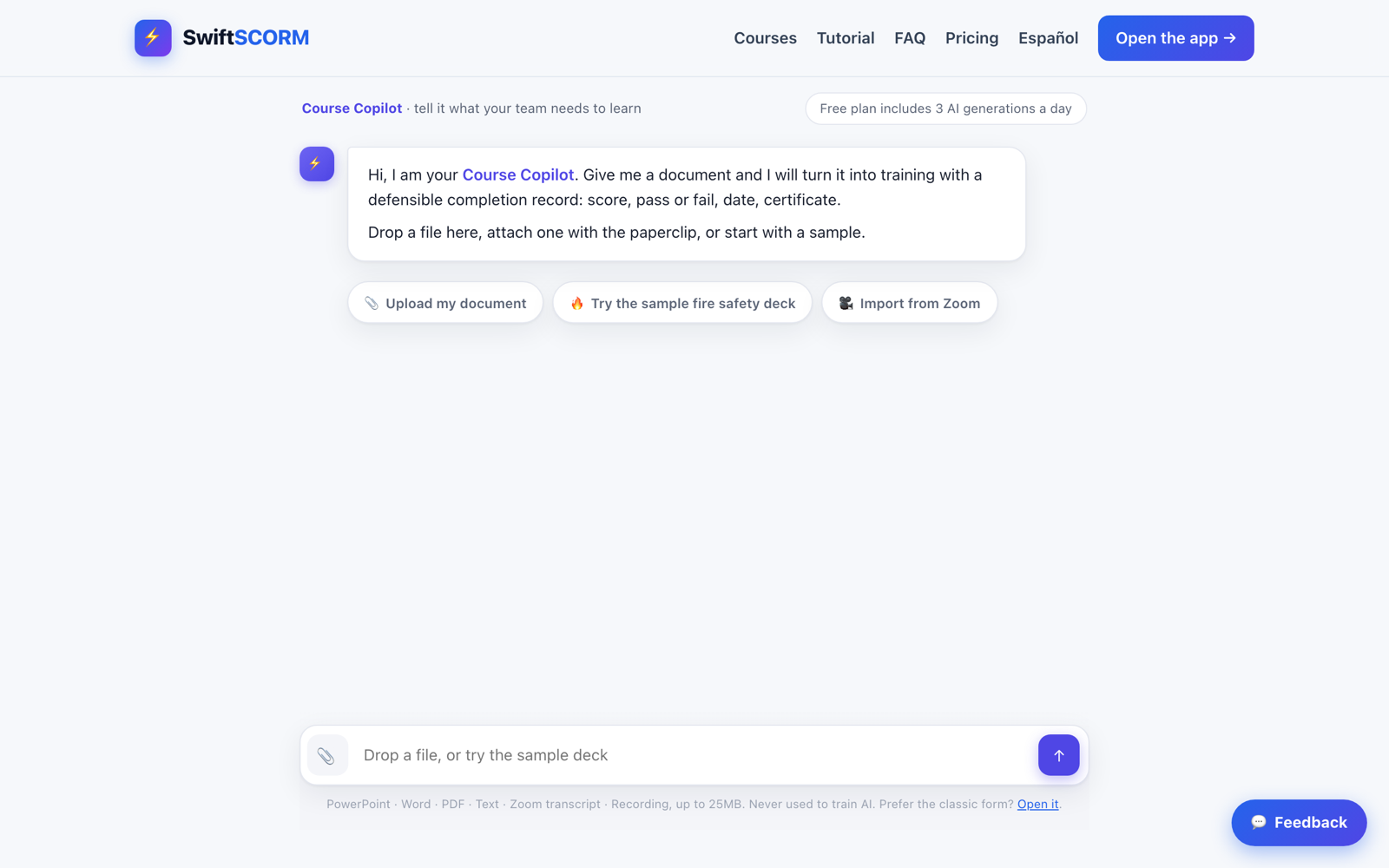
Open the Course Copilot. It greets you and offers three ways to start: Upload my document, Try the sample fire safety deck, or Import from Zoom. You can also drop a file straight onto the chat or attach one with the paperclip. To follow along without a file of your own, tap Try the sample fire safety deck.
Step 2: Answer a few quick questions
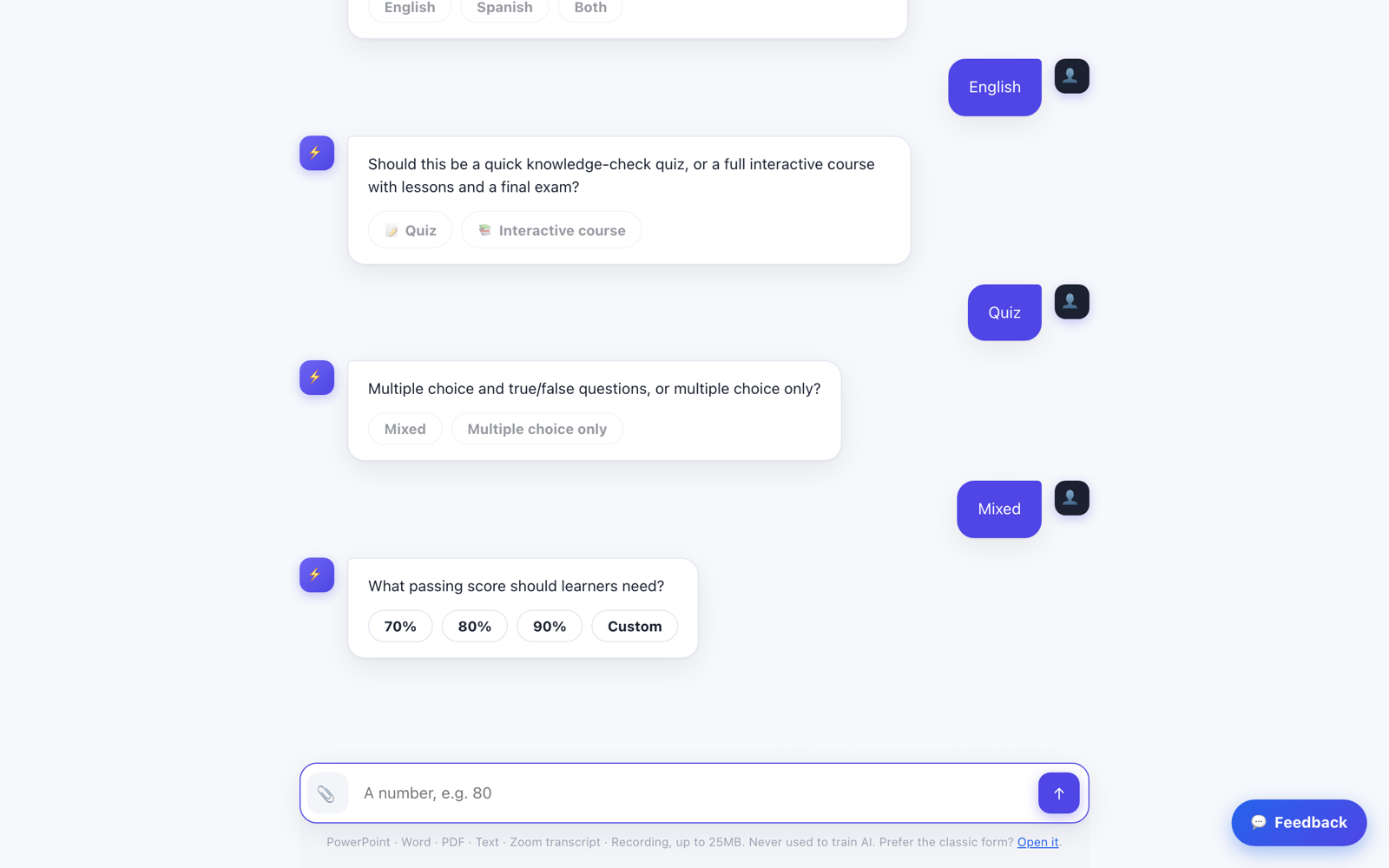
The Copilot asks one thing at a time and gives you tappable answers: language, whether you want a quick knowledge-check quiz or a full interactive course, the question mix (mixed, or multiple choice only), and the passing score (70%, 80%, 90%, or a custom number). Tap an answer, or type your own in the box.
Step 3: Let it draft the questions
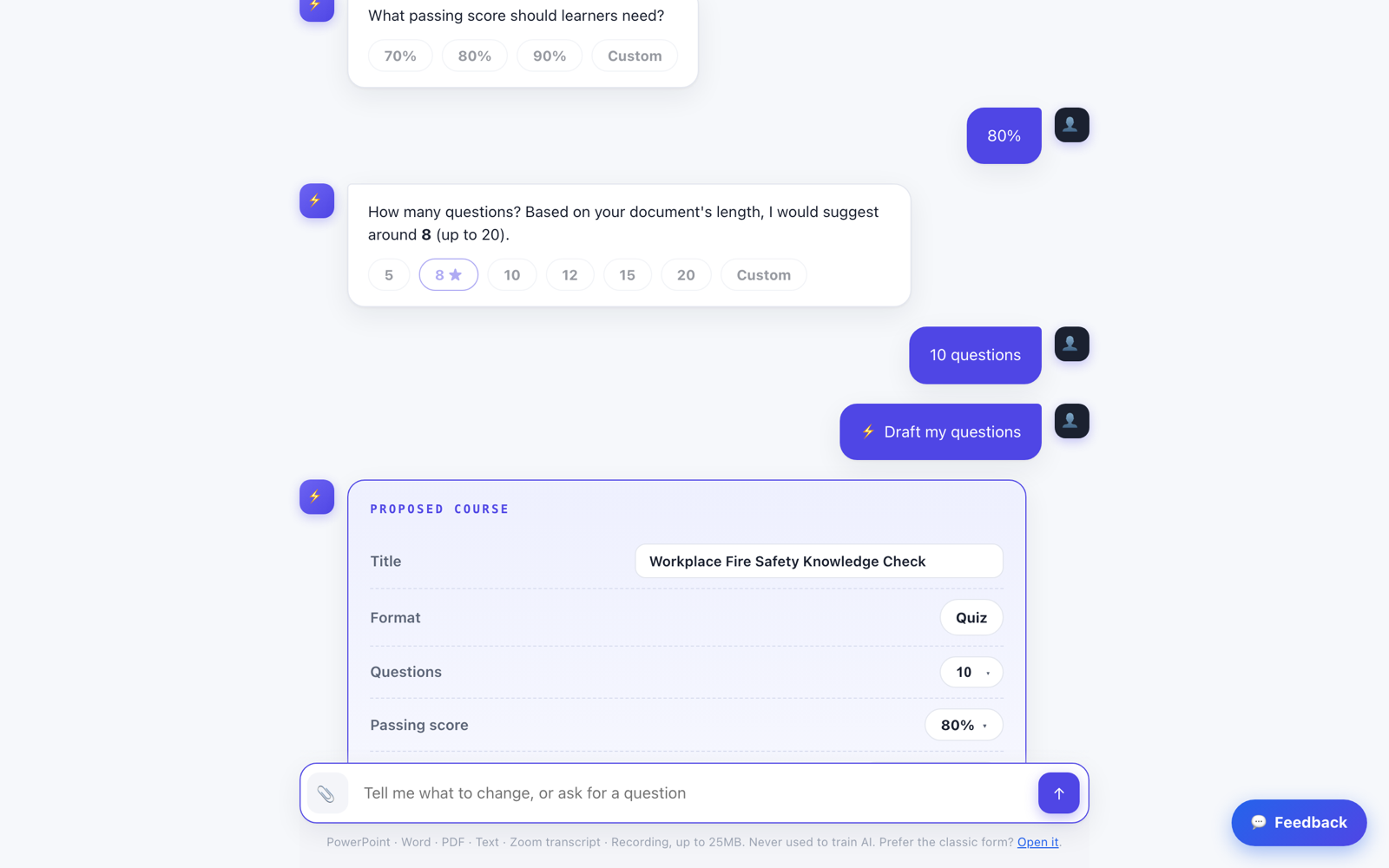
Last, it suggests how many questions to write based on your document length (around 8, up to 20). Pick a number, then tap Draft my questions. This is the step that uses the AI, so it draws one of your daily free generations. The Copilot then assembles a Proposed Course card with the title, format, question count, and passing score.
Step 4: Review and adjust every question
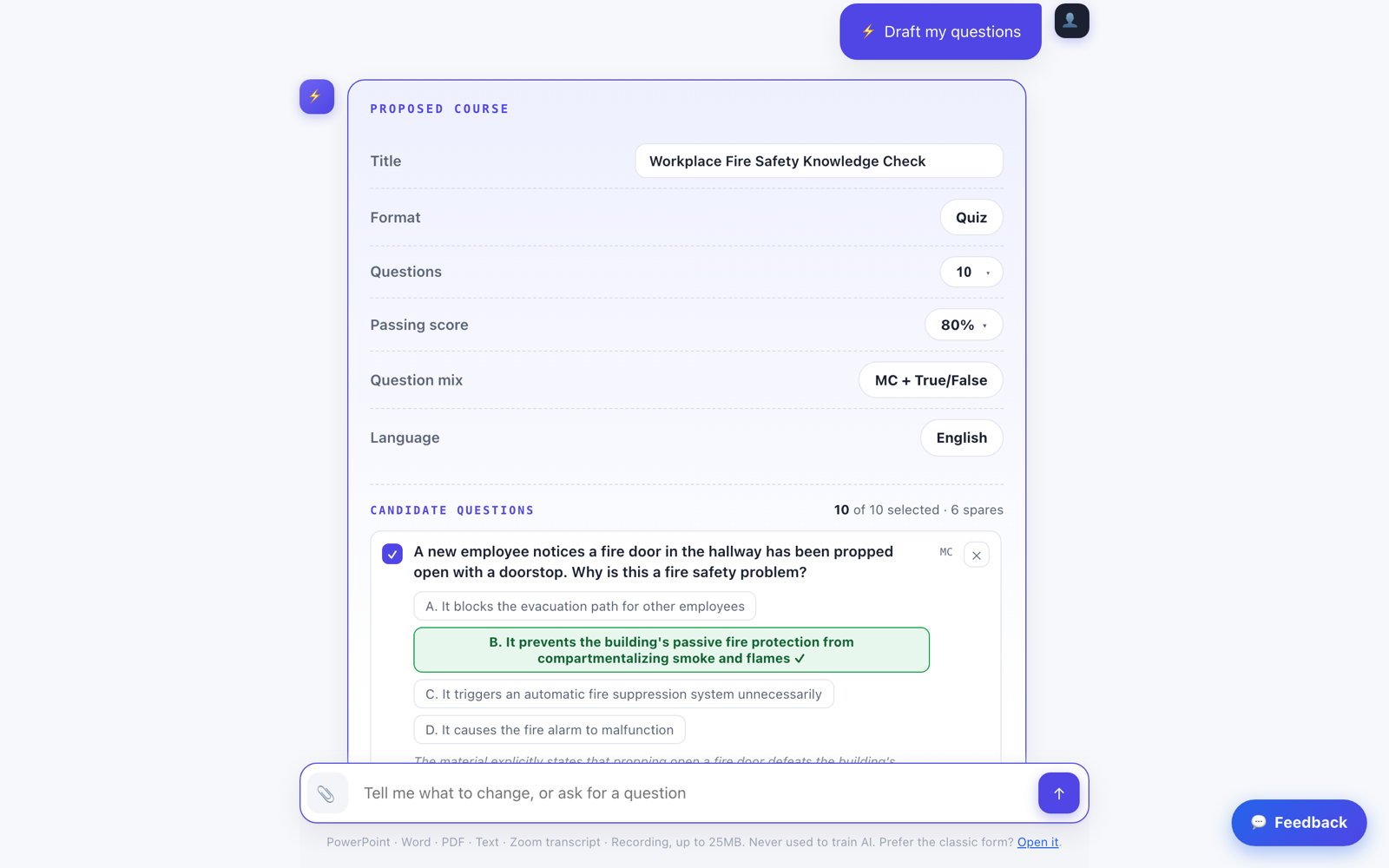
The Proposed Course card holds the full plan plus the candidate questions. Each question shows its correct answer marked green with a checkmark. Uncheck any you do not want, tap the × to swap in one of the spare drafts, or edit the wording. When it looks right, tap Use these questions. You stay in control before anything is locked in.
Step 5: Send it as a link, or export SCORM
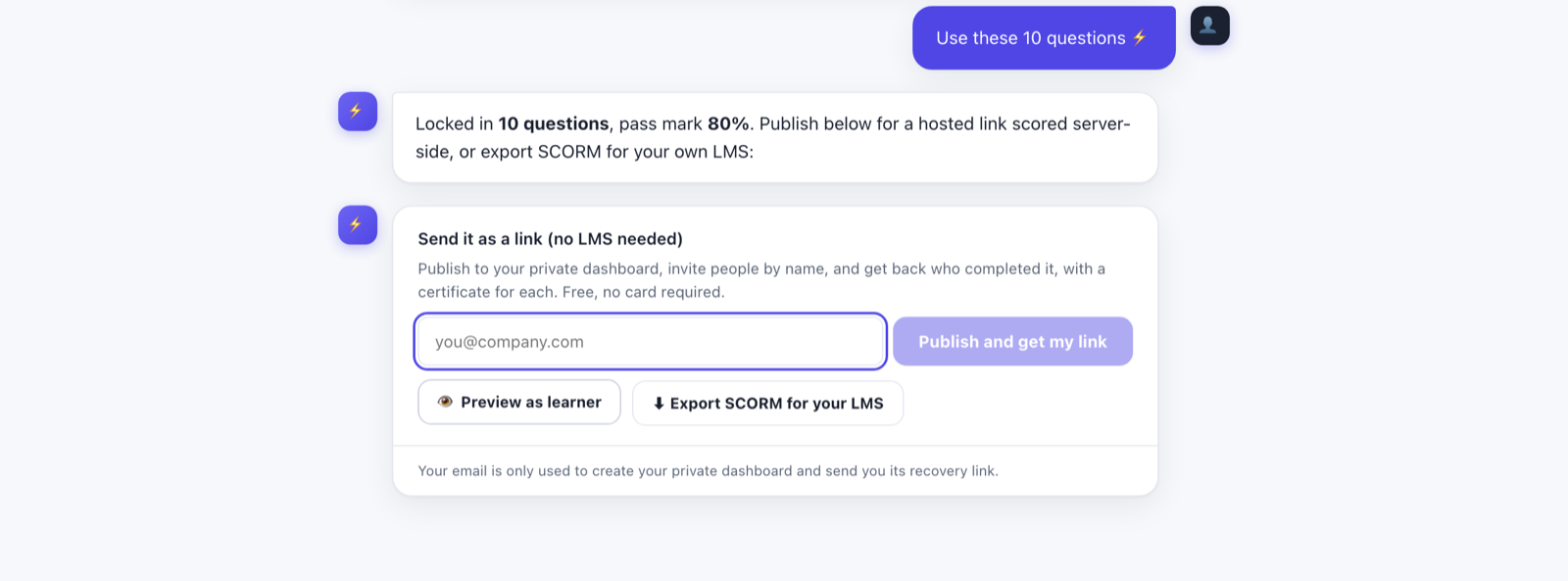
Once you tap Use these questions, the Copilot confirms the count and pass mark, then offers a Send it as a link card. Enter your email and tap Publish and get my link to host the course on a private dashboard, invite people by name, and get back who completed it with a certificate for each. Free, no card required. Prefer your own system? Choose Export SCORM for your LMS instead. You can also Preview as learner first.
Walkthrough B: Classic builder
The same three stages, all on visible forms: Upload, Review & edit, and Send or export. The progress bar across the top shows where you are.
Step 1: Upload your training material
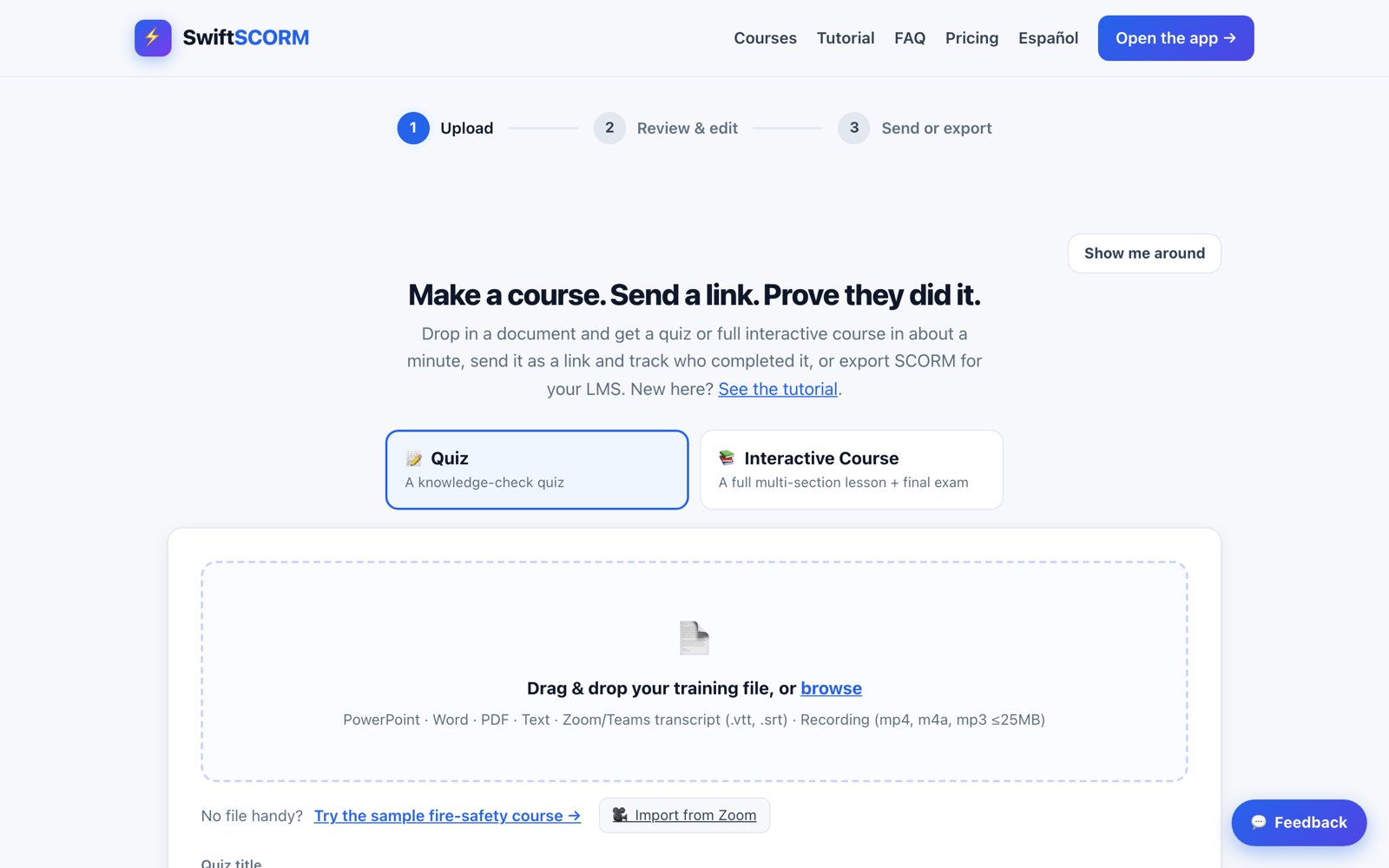
Open the classic builder. Choose Quiz or Interactive Course, then drag a file onto the drop zone or click browse. It accepts PowerPoint, Word, PDF, text, a Zoom or Teams transcript (.vtt, .srt), or a recording. No file handy? Click Try the sample fire-safety course to see the whole flow with example content.
Step 2: Set the options, then Generate
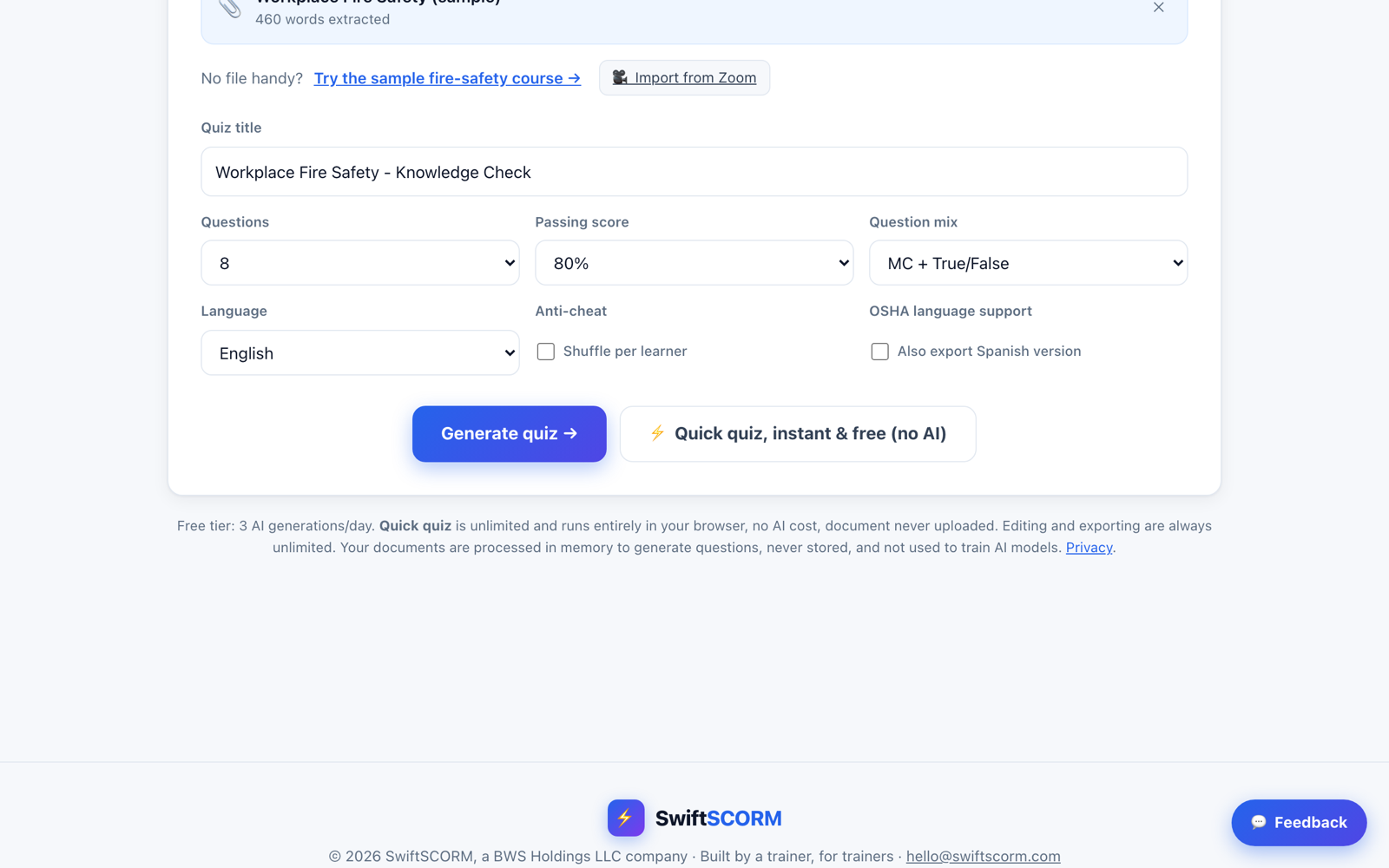
After the material loads, set the quiz title, how many questions, the passing score, the question mix, the language, and optional Shuffle per learner (anti-cheat). Then click Generate quiz and the AI writes your questions in about 15 to 30 seconds. Or click Quick quiz, instant & free (no AI), which builds a quiz entirely in your browser with no AI cost and without uploading your document.
Step 3: Review and edit every question
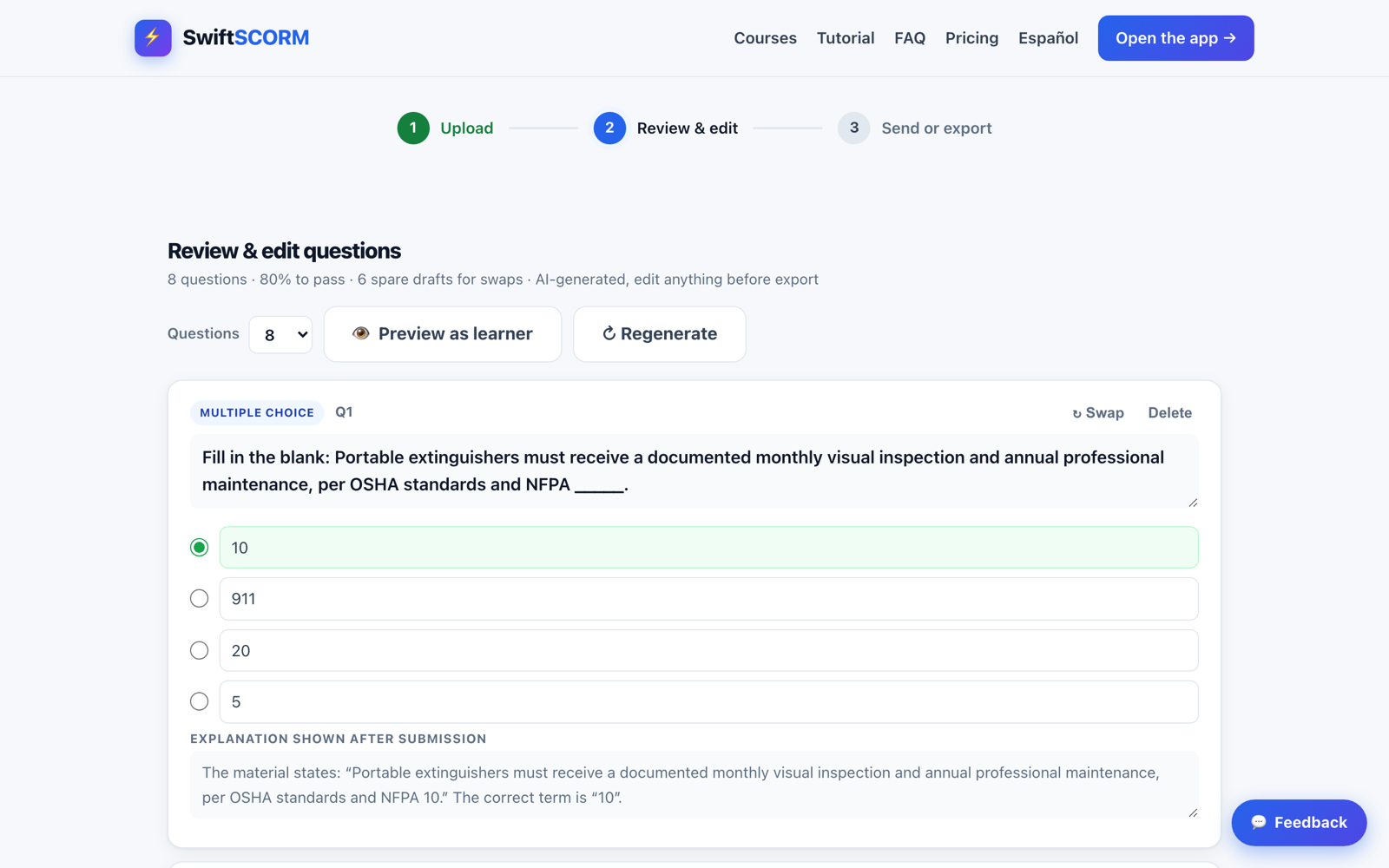
This is where you stay in control. The header shows the count, pass mark, and how many spare drafts are available for swaps. Each question is fully editable: fix the wording, change the options, mark the correct answer, edit the explanation, Swap in a spare, or Delete a weak one. Click Preview as learner to take the quiz yourself, or Regenerate to try a fresh set.
Step 4: Fine-tune a single question
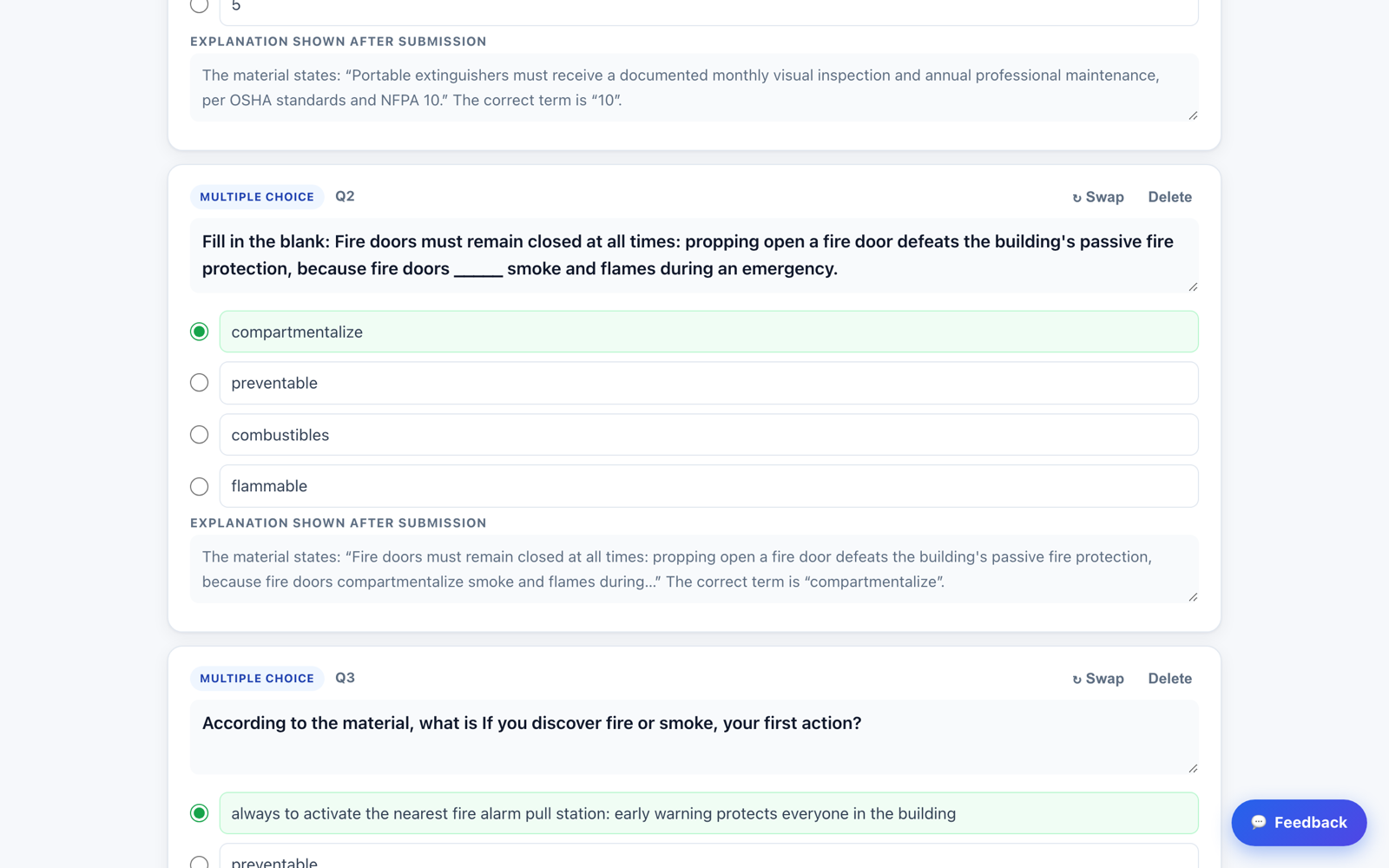
Each card is self-contained. In this fill-in-the-blank example, the correct option is highlighted green with a filled dot, and the explanation shown after submission quotes the source material so learners understand why. Change any answer by clicking its circle, edit the text inline, or use Swap and Delete in the corner.
Step 5: Send it, no LMS needed
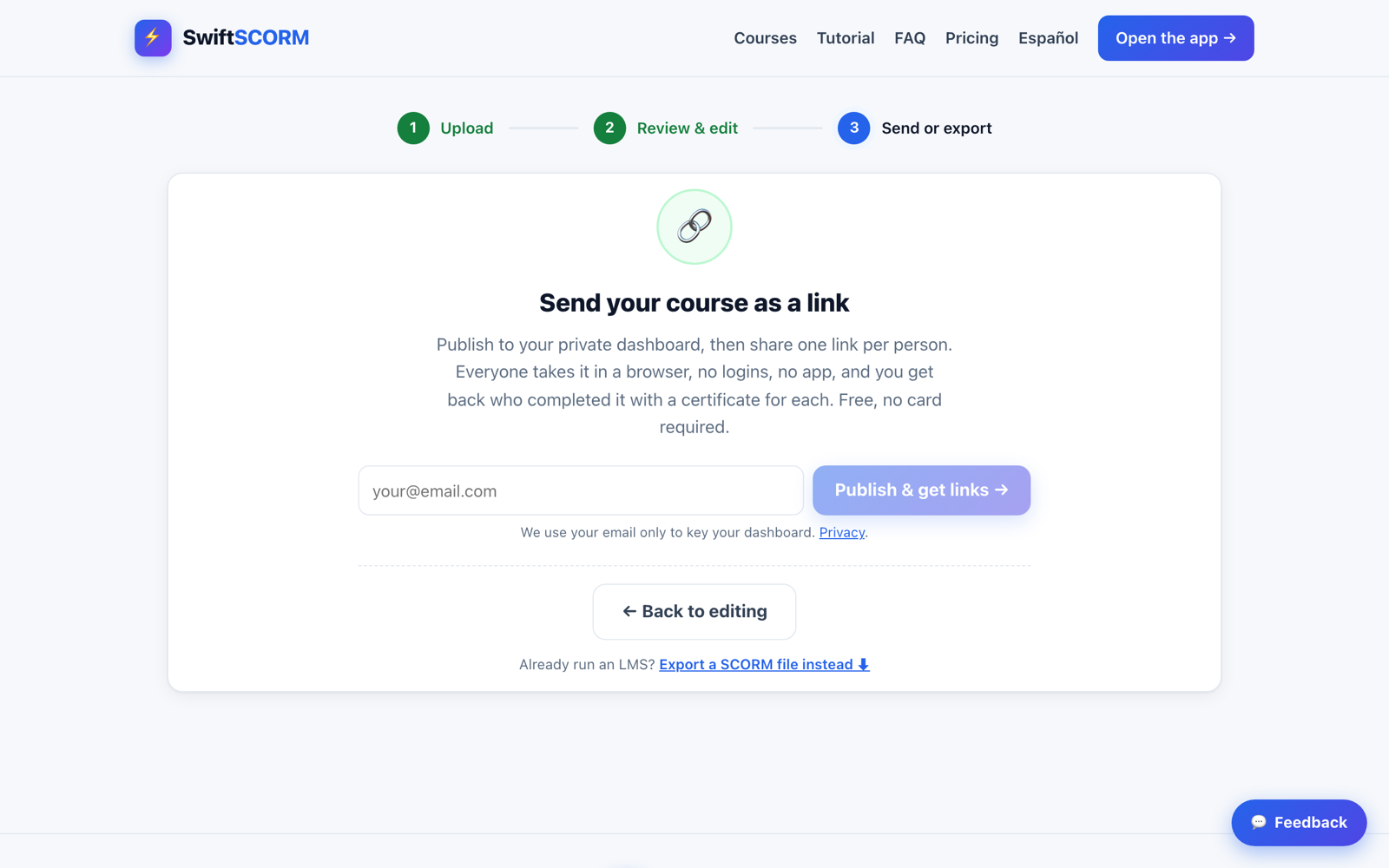
On the final Send or export step, the Send your course as a link card publishes to a private dashboard. Enter your email and click Publish & get links: everyone takes it in a browser with no logins and no app, and you get back who completed it with a certificate for each. Free, no card required. Already run an LMS? Choose Export a SCORM file instead to download a SCORM 1.2 .zip and import it into Moodle, TalentLMS, Docebo, and more. Scores report to the gradebook automatically.
That's the whole flow, both ways. Try it now with the sample course, no signup needed.
Open Course Copilot →Prefer the form? Open the classic builder instead.
More help
Browse the FAQ, or the LMS import guides. Stuck on something specific? Email hello@swiftscorm.com.